Google Chrome allows you to personalize and customize your browser experience. Efficiency is the goal when you are swamped with papers to grade, parents to email, a personal learning network to connect with and have a little fun while surfing the web. Google Chrome browser allows you to install extensions that help your work flow in all your daily web activities.
Some of my favorite extensions for Google Chrome are...
This extension is now retired. You can still use it, but it is highly recommended that you upgrade to the next version, which is called ShortenMe. It now has the very frequently requested feature of saving links to your goo.gl account!
With this extension, you can:
1) Double-click any word to view its definition in a small pop-up bubble.
2) View the complete definition of any word or phrase using the toolbar dictionary.

Foreign words are automatically translated to your language of choice.
With one click on the lamp button, the page will be fading to dark. And automatic focus to the video. Click again, the page will return back as normal.
With one click, Clearly makes blog posts and articles clean and easy to read. Clearly eliminates all distractions from your online reading experience, and even allows you to browse multi-page articles in one, seamless view.
This extension will open a Compose window in Gmail when you click any email address on a webpage. It also provides a button that will create a Gmail message when clicked, using the page title as the subject and selected page text and link address as the message.
Amazon Wish Lists are universal. You can add anything from any website to your Amazon Wish List making it easier than ever to keep track of all the items you want in one place. Once you download the Amazon Wish List extension to your Google Chrome browser -- start shopping. When you see something you want on any website, just click the Amazon “Add to Wish List” button.
Easily add and manage your tasks from Chrome in one of three ways:

*  Simply type "t Your new task" into the Chrome Omnibar to easily add a task from whatever web page you're on.

*  Click the Tasks icon to add a task, see your tasks and task lists and mark a task as completed

*  Highlight text on any web page, right click and add that text to a new task.
Recently I presented at the Google Education On Air Conference with more Google Chrome Ninja tips. View the recorded Hangout below.
To learn more about Google Chrome and all the Google Apps for Education, join us at a Google Apps for Education Summit!
Want to create a fun logo for your Google Site or classroom web page? View this screencast to see how you can create fun logos and images using ColourLovers and Picnik.
Google just launched a Guide to Going Google a new website for districts considering adopting Google Apps for Education.
Edina Public Schools is featured on this website with some ideas on how to promote your transition and providing some training and resources for your staff and students.
You can also find a Google Apps for Education Certified Trainer to help you with your Google Apps deployment. You can request a training with Google Certified Teachers and Google Apps Certified Trainers Molly, Ben and Sean here.
This week I finally finished up my Google Apps for Education Certified Training.
In order to be come a GAFE Certified Trainer you need to take a series of 6 exams on the topics of Google Apps for Education, Google Docs, Google Sites, Gmail, Google Calendar and Other Tools. Once you finish the exams you need to produce a two minute video tutorial highlighting a feature in Google Apps for Education.
Here is my two minute tutorial on "Embedding Multiple Calendars on Google Sites." Enjoy!
Google Workshop for Educators Hopkins, MN Registration Open! August 6-7, 2009 Hopkins High School Register Here! Cost $250
Search, learn, share! Brought to you by the producers of the Google Teacher Academy, a Google Workshop for Educators (GWE) introduces participants to innovative ways Google tools can be used in education. The two-day workshop includes a full day of fast-paced presentations and hands-on activities including experience with advanced search techniques, collaborative web-based applications, and inspirational instructional strategies. A second day will be devoted to development of a proof-of-concept project and classroom application. Google Certified Teachers share ways they've implemented tools such as Google Docs, Google Earth, Google Sites, and... even more. Participants who complete the event are given access to the Google Workshops for Educators Network (GWEN), an online community focused on supporting educators as they learn more about the power of Google to drive student learning.
We are looking for creative participants (eager beginners to advanced) that have a desire to build on current skills and integrate relevant technology into the classroom. Participants should have a desire to collaborate online with other educators from the workshop and help support each other with questions and successes. Participants should bring their own ideas and be willing to look at big picture when pace is fast and dive into the relevant details during time set aside
I recently attended the CUE conference out in Palm Springs, CA. It was a great time to connect with some of the people that are in my Personal Learning Network and to connect with some new faces in Educational Technology. Here are a few highlights from the conference.
Great new Websites or Tools:
searchlearnshare.com This site allows you to search Google web, news, video, images, blogs, video and books all with the click of one button!
cooliris.com - a cool way to share you flickr favorites
Dropbox - getdropbox.com get 2G of space to share and upload files: syncs instantly
Multicolor search Lab with flickr: This site is amazing...you choose a color you like and it searches flickr for all the pictures with that color...give it a shot, it's beautiful!
Visuacy.com It's important to recognize the ways in which visual images affect us and our children. Twitter Me This: An Introduction to Social Microblogging in Education*
Session Summaries, Notes and Ideas Brain Pop I attended a session on Brain Pop and learned that there are so many different resources and activities on that site on top of the great tutorial movies they share. When you are on the Brain Pop site, make sure to visit the bottom links to all the great resources available to the teacher. You could spend a whole week on just one of the movies!
Brain Pop has also recently launched a Brain Pop for Educators Site...make sure to check it out!
Best of iTunes University Did you know there are thousands of lectures, podcasts and videos available for free on iTunes University. Kids spend up to 72 hours a week using digital media and this is a way that educators can enter their world. You can download all of these resources for free. This is something I'm wanting to explore more!
What is new with SMART technologies? I went to a few sessions and hands on experiences that were sharing the newest projects that SMART technologies is releasing. The first was the SMART Notebook Student Edition. The Student Edition comes fully loaded on a SMART USB braclet for each student. The student is given the Notebook Software to create lessons or save lessons from their teacher. Students have a "binder" type application on the SMART Notebook Student Edition braclet that they can keep the files and lessons that their teacher has created for them on their braclet. I think this is really exciting because it allows the teacher to think differently about creating a SMART lesson. How would you create a lesson differently knowing that each student will complete each of the pages that you create?I also had the chance to interact with the new SMART table. The SMART website says... The SMART Table is the first multitouch, multiuser interactive learning center that allows groups of primary students to work simultaneously on its surface. The table's interface is so intuitive that even the youngest of students can get started without instructions.
The table sells for $8,000 so I'm not sure how many schools will be able to afford, but it does seem like a great new technology that will be available to our students!
Of Course I learned about Google!
Google News allows you to make a specialized search for News items of YOUR interest
You can use Google News to teach bias in media by looking at one specific news story and checking out all the different News Paper Headlines to see where bias shows up!
Organize your iGoogle page into three tabs...Today. Maybe. Never. This will allow you to focus on the things you always want to look at and the things that you'll check up on when you have a few moments...not sure what you'd put on your Never page!
Google Translate will translate into many different languages, you can even paste a URL into Google Translate and it will translate the entire blog or web page into the language of your choice...doing a survey on survey monkey, past the URL into Google Translate and your survey is in another language! Include a link on your blog that says, "Read my Blog in Spanish"
You can create a custom search engine for a project you are working on that only searches the websites you designate!
iPhone I recenly purchased an iPhone so I selfishly wanted to attend this session to see how to use the iphone as a teaching tool. I was blown away by the amazing apps and ways that you can use the iphone or itouch in education. Here is a link to Lainie's presentation and resources. A few iphone tips...
help.apple.com/iphone
hold the hold button and the power button on the top to take a screen shot of your iPhone
click the status bar to automatically go to the top
in Safari or email...hold your finger on a picture for long enough and the iPhone will prompt you to save the picture
hold down the a key and special symbols will come up to choose what you want
on the web when typing in an address hold down on the .com to change it to dot org, net, edu
MAPS feature...go to your computer and get the directions on google maps and then send the address to your email and this will send you an email that will automatically open google maps on your phone populated with the addresses and directions
Favorite Apps from the Audience
iTap- $4.99 acts as a wireless mouse for your mac computer
List of US presidents with brief bios
Constitution
Pocket grade: find an easy percentage for an amount wrong
Operina: turn your iphone into a musical instrument ocarina
Bloom: music app generative music
Stage Hand: controls your keynote presentations with a pointer
bucksme: find the nearest starbucks $.99
midomi: hum the song and it will tell you what song you are singing
crayons physics: physics puzzles and all you have is gravity
stanza: free books to read on your iPhone
kindle for the iPhone: downloads the first chapter for free and then you can buy the books
Pandora: online radio streaming that is smart and will find music that matches that band
Public Radio
Snaptell: take a picture of a book title and it will find the book for you
Google Mobile Apps
RJDG album: takes all the sound around you and makes it into music
Just for Fun
Coolirius App: 3d wall for finding and viewing content, email content found, search visually
TV.com browse feature shows by show or channel, full episodes of shows, add keywords for you own feed
Whiteboard: paint like graffiti like interface, two devices can draw on the same canvas simultaneously
Translator: $.99 widescreen typing
iBowl: swing your iPhone like a bowling ball, try iGolf, basketball and baseball
Trace: drawing game with 6 unique worlds, and 120 levels, sounddtack
SMS texting: polleverywhere.com
chacha people respond via text
Lainie also ended her presentation showing this advertisment for Kaplan University that really captures where we want Technology and Education to open up the world for students!
Keynote Speaker: Robert Marzano Robert Marzano was there to speak about the research he has done surrounding interactive whiteboards and their influence on learning. His study focused on Promethean Activeboards but the learnings could apply with any companies technology. Here is an interview by Chris Walsh with Marzano on CUE LIVE!
Here are a few key points:
The long a teacher has an interactive white board, the achievement gains increase
The use of the interactive white board should be no greater than 75% of the day, if you go over the achievement gains drop significantly
The Sweet Spot: An experienced teachers, who has been using the technology for 2 years, who uses it about 75% of the time will have greatest student achievement.
The more confidence the teacher has in their skills using the whiteboard, the better the improvement gains for the students
Students need to keep track of their own learning over time to improve achievement gains
Proper use of the technology focuses on the content and not the bells and whistles
The next great breakthrough will be the clickers and how they interact with the white boards and tracking student achievement
Just Announced! Google is running their Doodle for Google Contest again this year. This is a great opportunity for students to create their own Google illustration to replace the Google logo for one day. Watch this amazing video to see what the contest is all about!
The theme for the contest is What I Wish for the World... The contest runs until March 17th so make sure to get your kids doodling! Register for the contest here!
Here are a few examples of Doodles for Google from the Google Illustrator.
Here is a great video from the Google employee who does the doodles!
Google is so much more than just searching for words! Did you know you can find flight information, track your UPS package, use Google as a dictionary, calculator and currency converter? You can use Google to find the time of anywhere in the world, to find an answer to a fill in the blank question, or to find movies in your zip code. Watch this video on helpful Google Search Tips to find out how!
Google Reader is a great tool to use to keep track of the blogs or news feeds that you like to keep track of. Watch these two Google Reader How To Videos to set up your Google Reader.
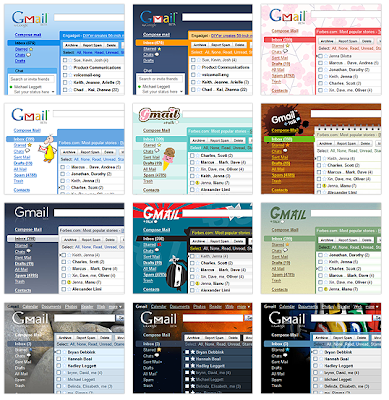
Gmail just launched a "themes and colors" section under settings in G-mail. You can customize the look of your gmail account with a variety of different looks. Here are a few examples! I went with the notebook but will probably change often...I love how Google doesn't only make life easier, but the make life more fun!
Google just announced that you can begin to customize your search preferences with "SearchWiki." You can add notes to your Google search, rearrange the order your links appear in your search and see how other people are organizing and annotating the same Google Search. Watch this short video from one of the Google SearchWiki engineers to show you how to use this feature.
Knol now has an area where people can debate current issues. The only debate that exists right now is on the Elections, but it is a great example of how people could use this site to debate current events, issues and ideas.